
Coexistence
Co-existence allows you to connect your existing WhatsApp Business App number to Gupshup.
- WhatsApp business App users can connect to Cloud API and take advantage of the automations
- You can still use the WhatsApp Business App as usual
- Chat history remains synced between both
Know Limitations from Meta Current Limitations
Please note the following limitations when using WhatsApp Coexistence:
-
Official Business Accounts (OBA) are not supported: Coexistence accounts cannot be verified as Official Business Accounts (blue tick). Businesses can instead apply for Meta Verified for Business.
-
Migration between WhatsApp Business Accounts (WABAs) is not supported: Phone numbers onboarded in a Coexistence setup cannot be migrated from one WABA to another. The standard migration guides do not apply to Coexistence.
-
Display name review is not automatic: Display names for Coexistence numbers are not reviewed automatically. To initiate a display name review, the business must first obtain Meta Verified for Business.
-
Profile picture updates are not supported after onboarding: Businesses should ensure that their profile picture and business information are finalized in the WhatsApp Business App before starting the Coexistence onboarding process, as profile picture updates are not supported afterward.
-
Calling API is not supported: The WhatsApp Calling API is currently not supported for Coexistence accounts.
-
No Payment attached to the WhatsApp Business App: Please ensure that no payment method (card or any other local payment option) is linked to your WhatsApp Business App.
- This will not allow Gupshup to attach our credit line.
- Recommedation here is that you remove all the payment method before proceeding.
Known Meta Issues
-
Phone number not eligible for Co-existence
- Meta has not yet shared the eligibility criteria for phone numbers
- No workaround or resolution has been provided so far
-
“Error Object” while submitting phone number
- Occurs during the onboarding flow
- Meta has not shared updates or a fix yet
-
Multiple or inconsistent onboarding errors
- Errors may appear at different steps of the flow
- Currently under Meta investigation, with no confirmed timeline
-
Inconsitent Events
The blow-mentioned webhooks/features are currently experiencing issues from Meta’s end.
- History events
- Contact sync
- Smb_message_echoes
For all the above-mentioned issues, we will update the documentation or share additional information once we receive further clarification from Meta.
Note: All apps will receive DRL events as they used to.
Before You Start (Quick Checklist)
Please make sure:
- Your WhatsApp Business App version is 2.24.17 or higher
- Your phone number country is supported
- Facebook login with Business Manager access
- Ability to scan a QR code from your WhatsApp Business App
- Your Whatsapp account in business App should be 3 months old with active messaging
Countries currently not supported
Nigeria and South Africa
Enablement
No additional enablement is required to use WhatsApp Coexistence. You can continue creating apps through Self Serve, the Partner Portal, or the Onboarding API.
If the "Connect to WhatsApp Business App" option is not visible for an app, use the enablement API and set the corresponding parameter to true to enable Coexistence for that app.
Similarly, if you do not want the Coexistence option to be visible to you or your customers, you can use the same API and set the parameter to false to disable the option.
Onboarding Steps
-
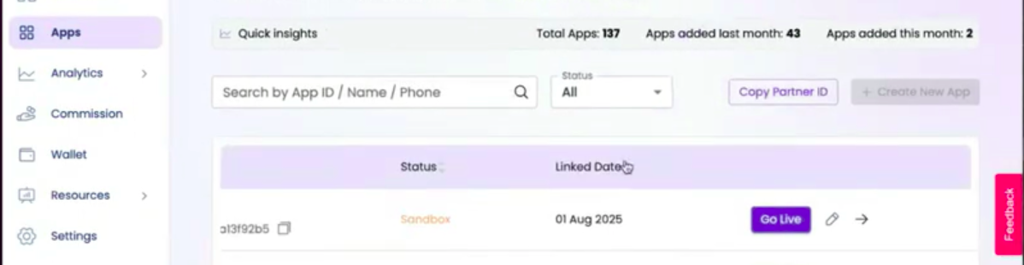
Click the App Golive button to start the Golive flow:
-
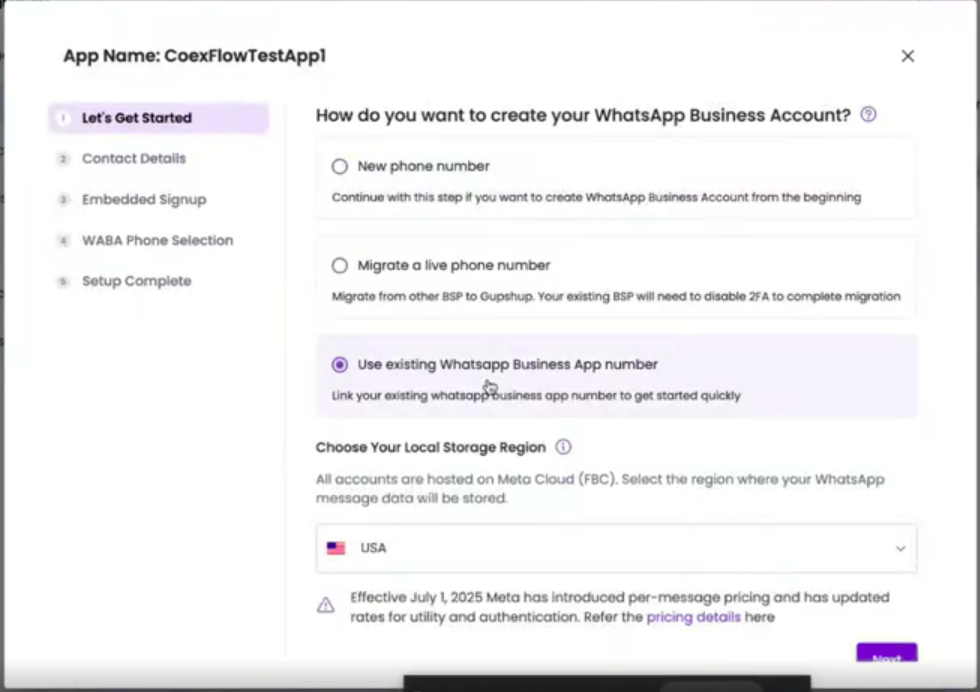
If the Coex feature is enabled, you will see an option to use an existing WhatsApp Business App number, select use existing WhatsApp Business Note: If you are unable to see this option, but your app is enabled for CoEx, please proceed you will see the CoEx steps in the Facebook flow (Step 7) of this guide.
-
Select your local storage region and click Next
-
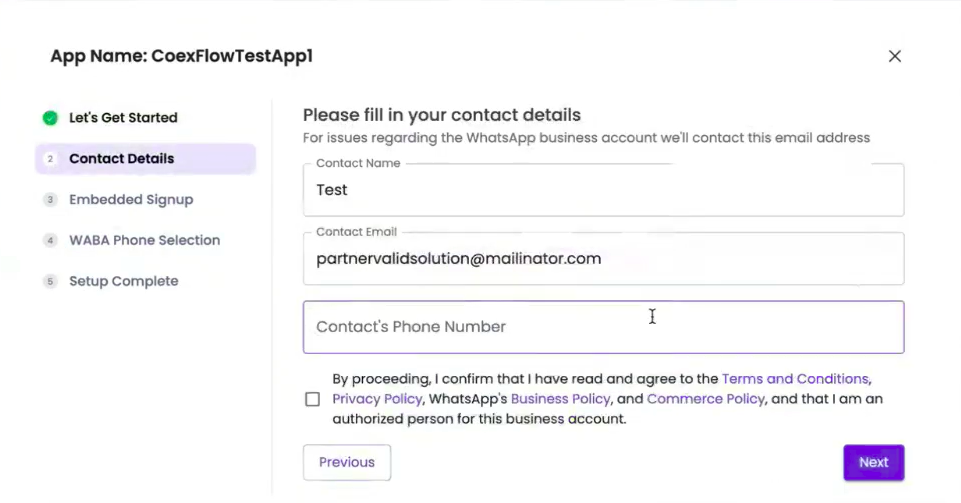
Enter the contact details, select the terms and conditions, and click Next.
-
Confirm Contact details
-
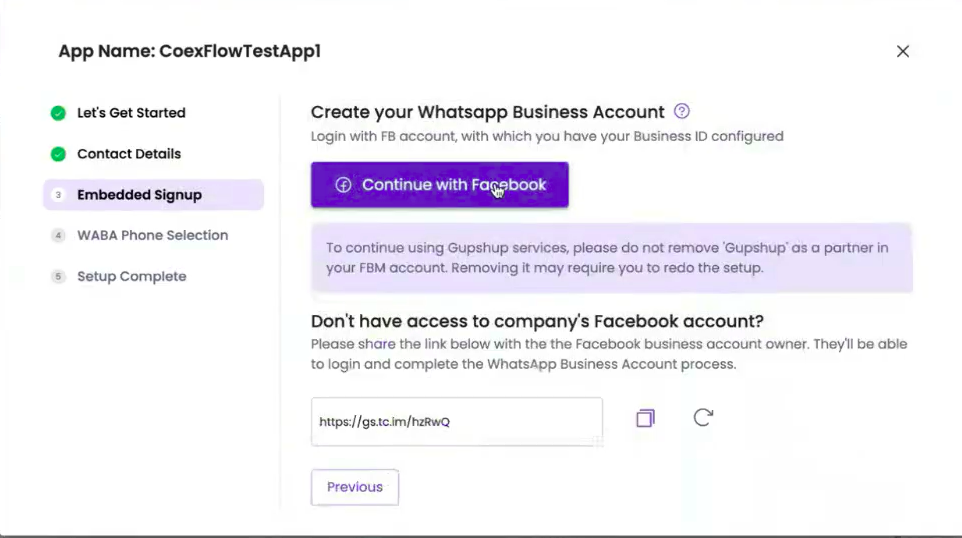
Click on Continue with Facebook or use embed signed link to process
-
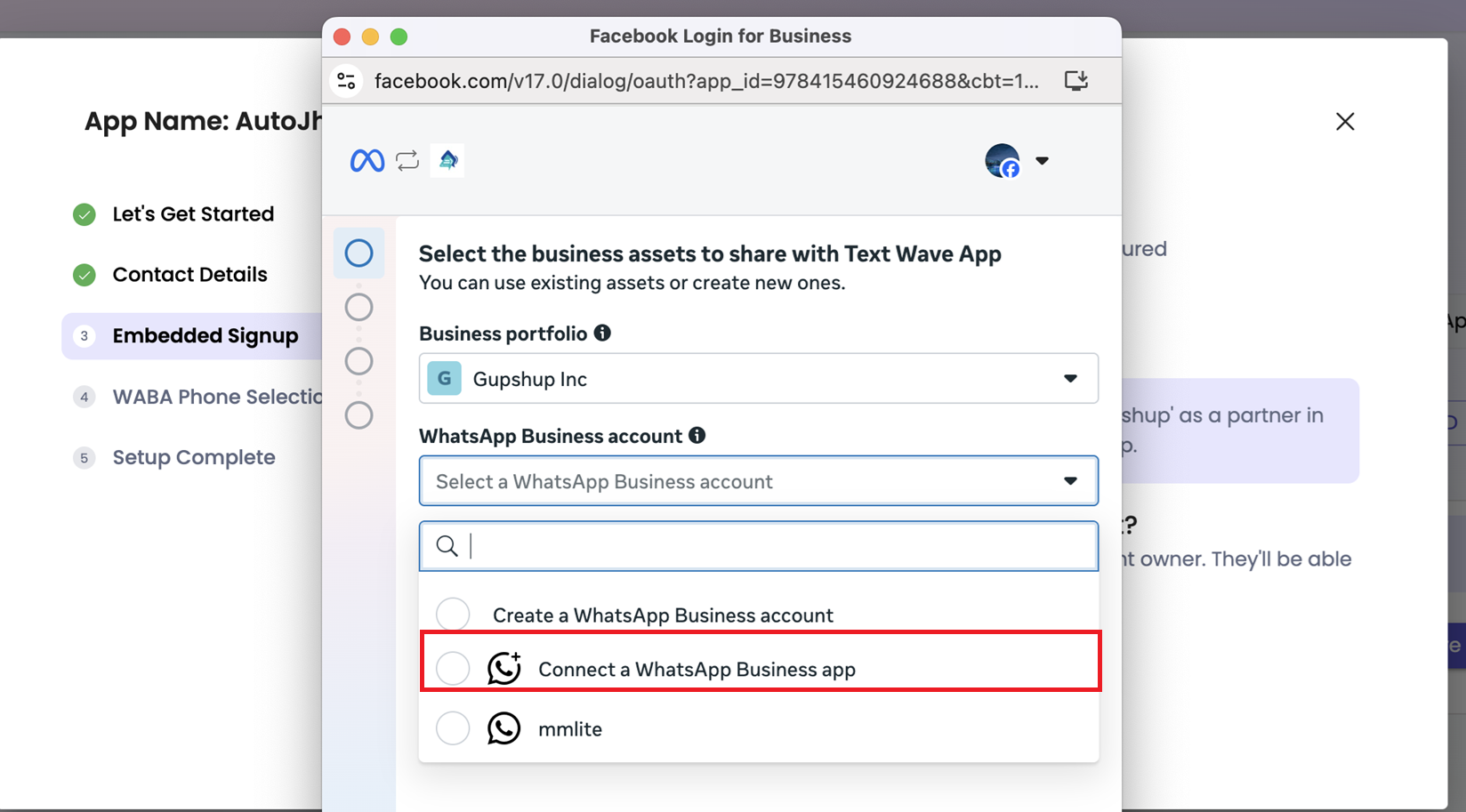
Click Continue, select Business portfolio then Connect a WhatsApp Business app from the WhatsApp Business account tab, and click Next.
-
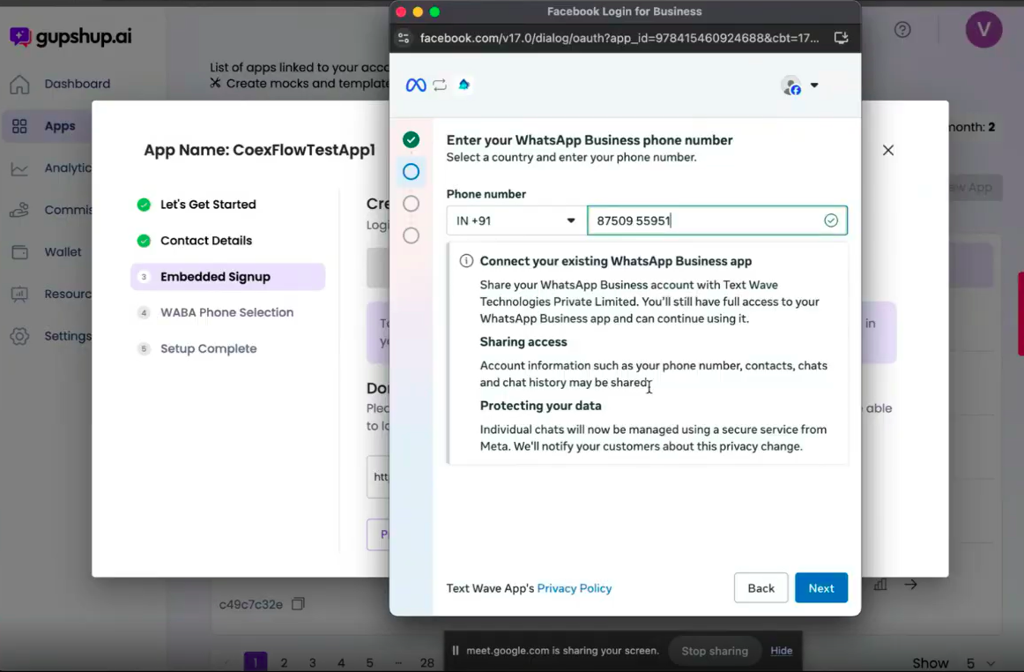
Enter a WhatsApp Business app phone number and click Next
-
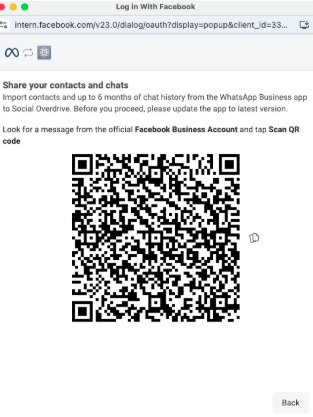
Businesses that select this option and enter their WhatsApp Business app phone number will see a QR code and instructions to check for new WhatsApp Business app messages:
-
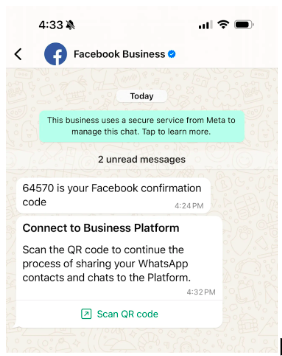
The WhatsApp message instructs the business to use the app to scan the QR code displayed in Embedded Signup:
-
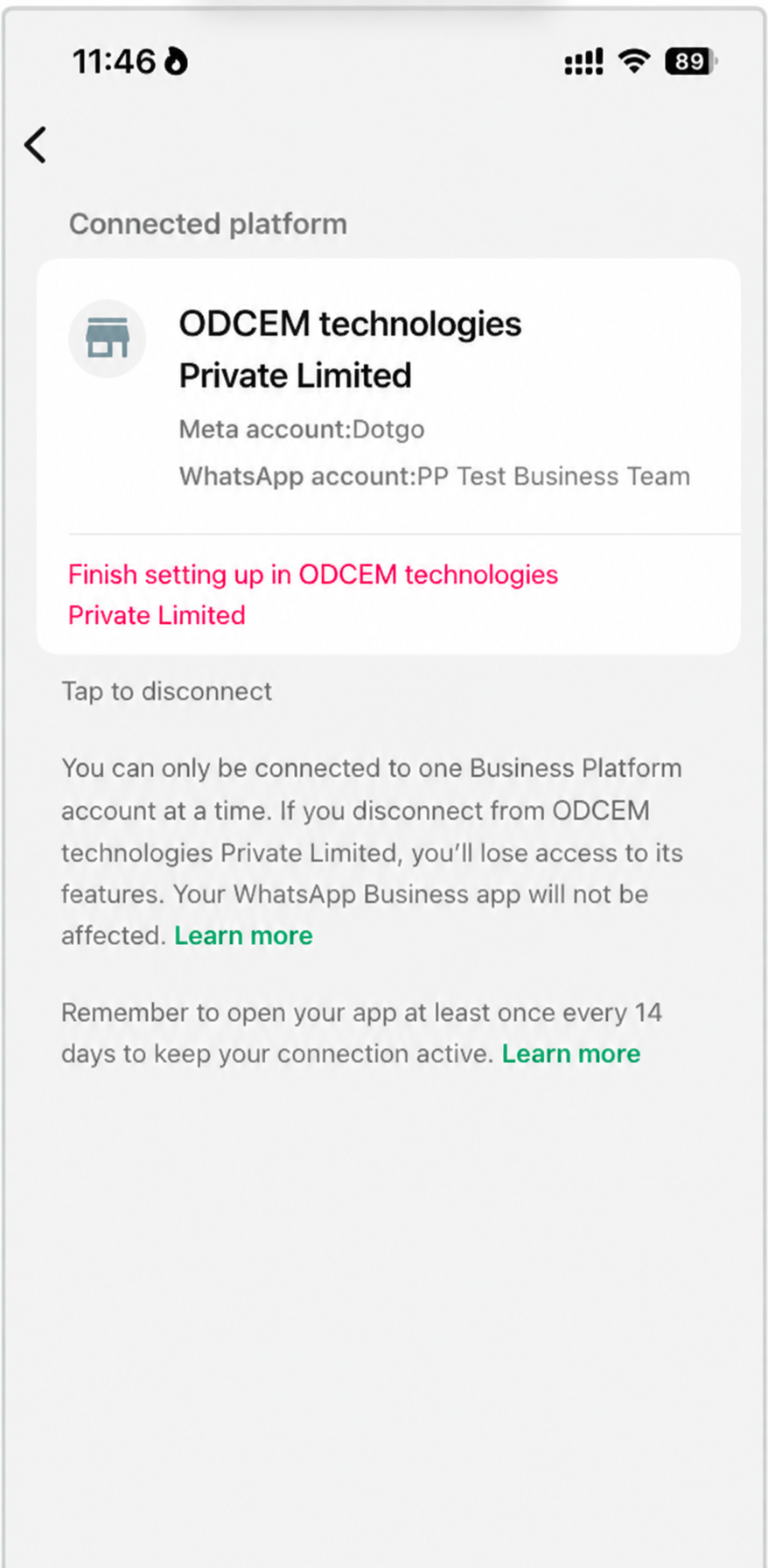
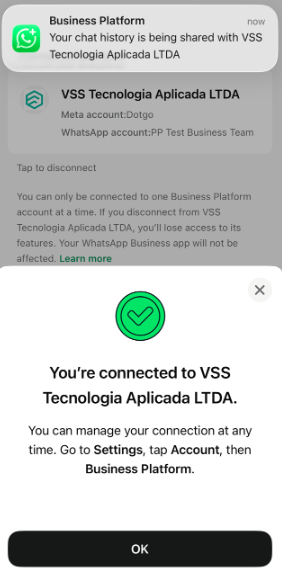
Connect to the Business Platform and complete the process Note : You can either use QR code scan or Use access code
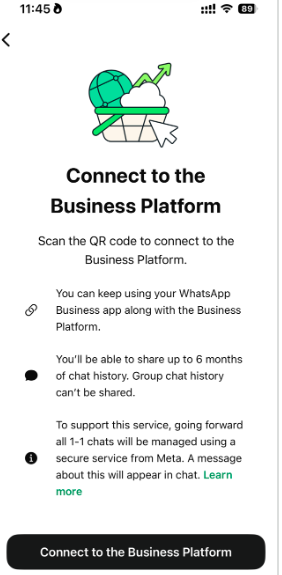
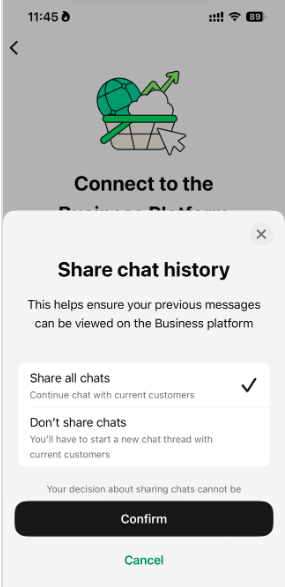
-
Please ensure that all chats are shared if you want to receive history events. If chats are not connected here, Meta will not share the history events.
Also, if you skip this step now and decide to enable it later, you will need to deregister your WABA from the Cloud API and complete the onboarding process again.
Please refer to the Sync API section to learn more about triggering history events. Please ensure that all chats are shared if you want to receive history events. If chats are not connected here, Meta will not share the history events.
-
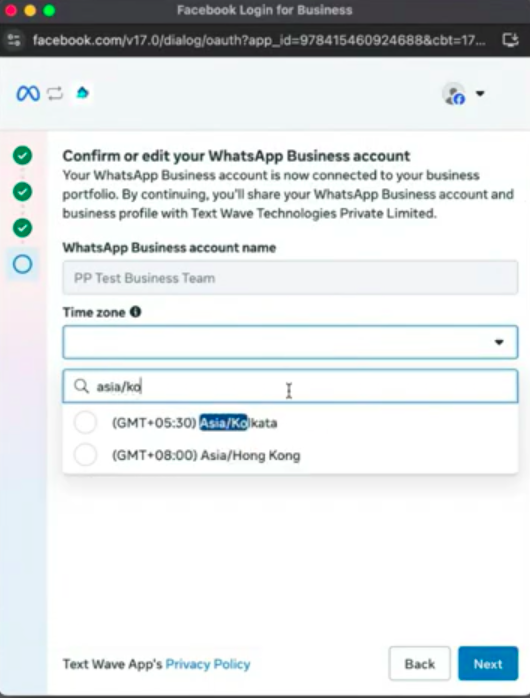
After All above Successful process, On FB page select the time zone and Complete the shown process on clicking on confirm and finish button
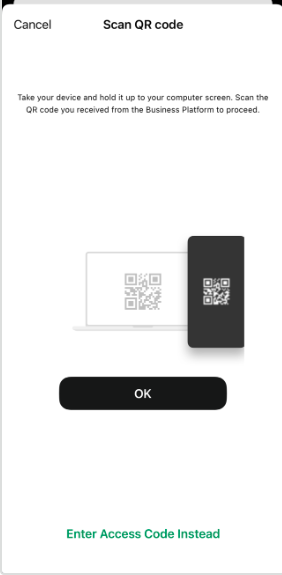
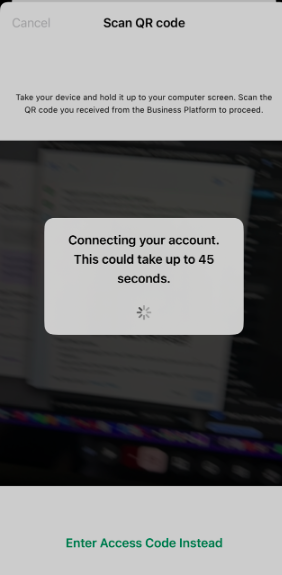
-
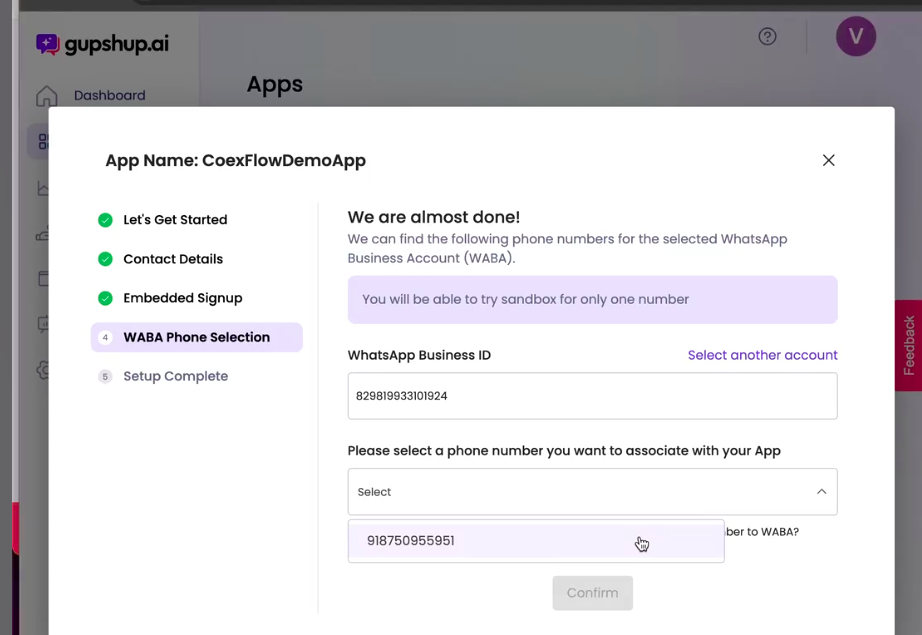
After Completion of FB Process Get Back to partner page for waba phone number selection Select phone number and click on confirm
-
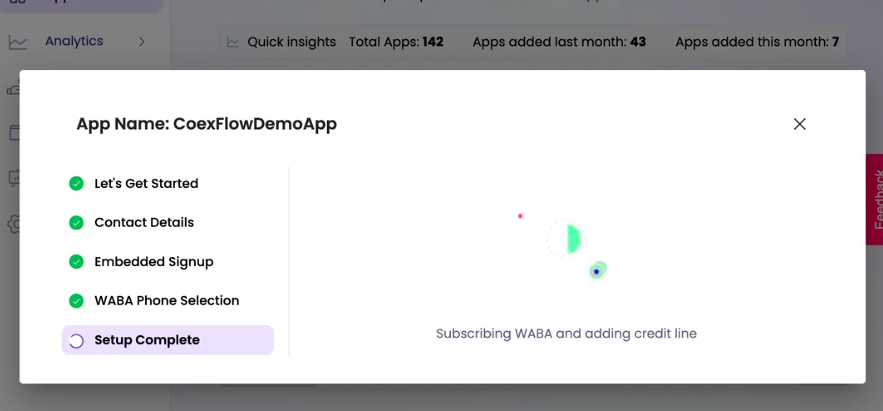
Wait for setup completion, After Successful setup completion, App is ready to use
Sync API - To trigger history and smb_app_state_sync
history and smb_app_state_syncBoth smb_app_state_sync and history synchronization can be triggered only once, and must be initiated within 24 hours of onboarding. Both smb_app_state_sync and history synchronization can be triggered only once, and must be initiated within 24 hours of onboarding.
Steps to use this API
- Make the API call with the desired syncType
- Then you will receive an event from Meta on the webhook as mentioned in the meta document here.
Coexistence Webhooks
Retrieve MediaPlease note the following regarding Media URLs in events:
For CoEx, we forward the v3 events exactly as received from Meta without any modifications. Meta now provides only the Media ID instead of a direct media URL.
To retrieve the media file using the Media ID, you can use the Media Retrieval API.
Now you are ready to start messaging from Whatsapp business app and Whatsapp cloud API.
Need Support?
For any support requests, questions, or issues, please reach out to [email protected], and our team will assist you with a resolution.
Updated about 1 month ago