
Transfer Partner Portal Account Ownership
Transfer Partner Portal Account Ownership
Use this process when the current account owner is leaving the partner organization or ownership needs to move to another employee. Transfer ownership to an active Admin before the current owner’s access is removed.
Security: Use an organization-managed email address for the new owner. Never share or publish access tokens, client secrets, or other credentials. The screenshots below have personal names and email addresses masked.
Partner Portal roles
| Role | Limit | Access described in this guide |
|---|---|---|
| Owner | One per account | Can add users, promote or demote Admins, and revoke other Admins’ token access. The Owner can transfer ownership. |
| Admin | Up to two additional Admins | Can manage tokens and block other users. An Admin can be selected as the new Owner. |
| User | No limit | Standard user role. A User must be promoted to Admin before they can receive ownership. |
An account can have one Owner and up to two additional Admins. If both Admin places are in use, the Owner may need to demote an existing Admin before promoting the successor.
Transfer ownership
1. Add the successor as a User
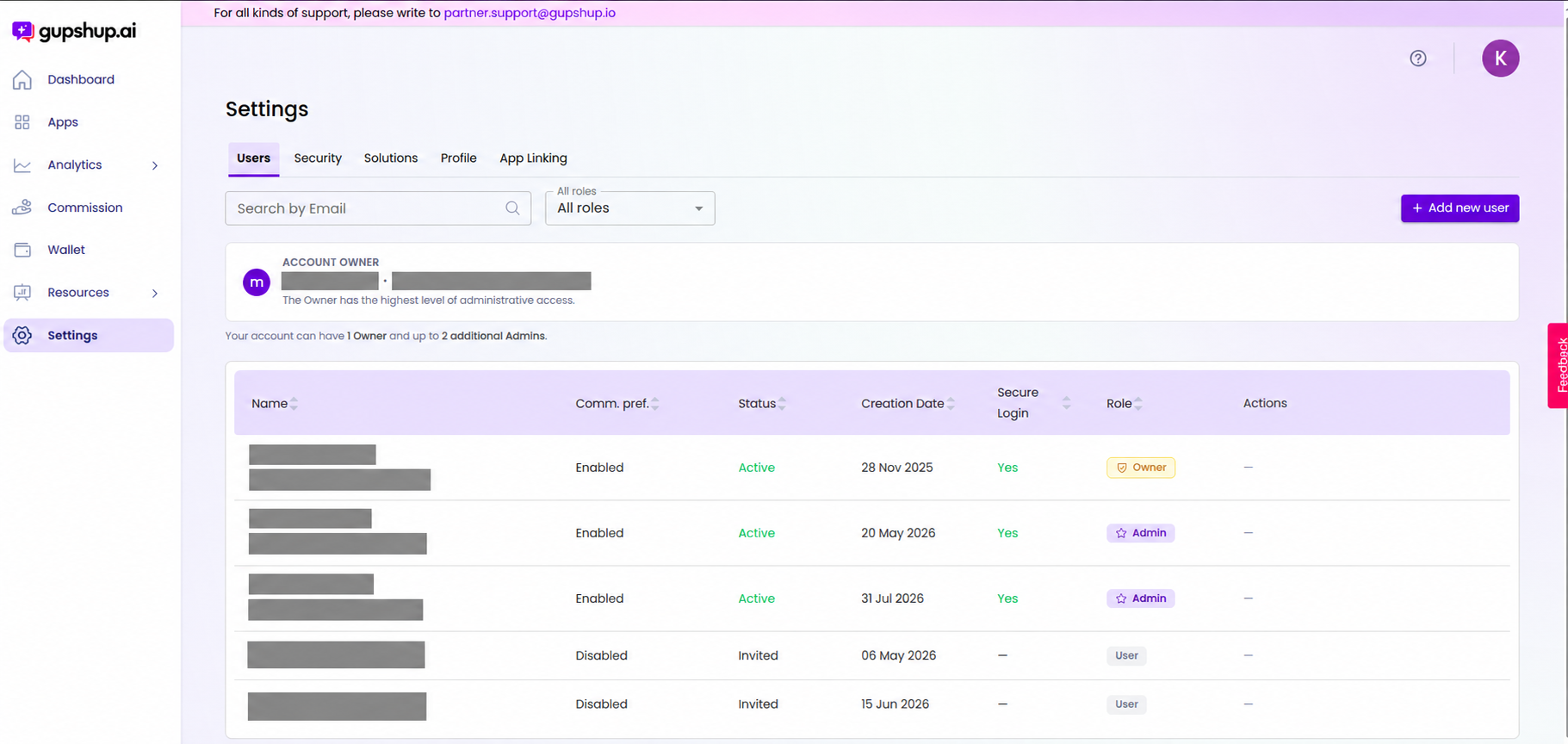
Sign in as the current Owner and open Settings → Users. Select Add new user and invite the successor using their organization-managed email address. Add them as a User first.
Wait until the person has accepted the invitation and appears in the user list. The Users screen shows the account roles and the Add new user control.
2. Promote the successor to Admin
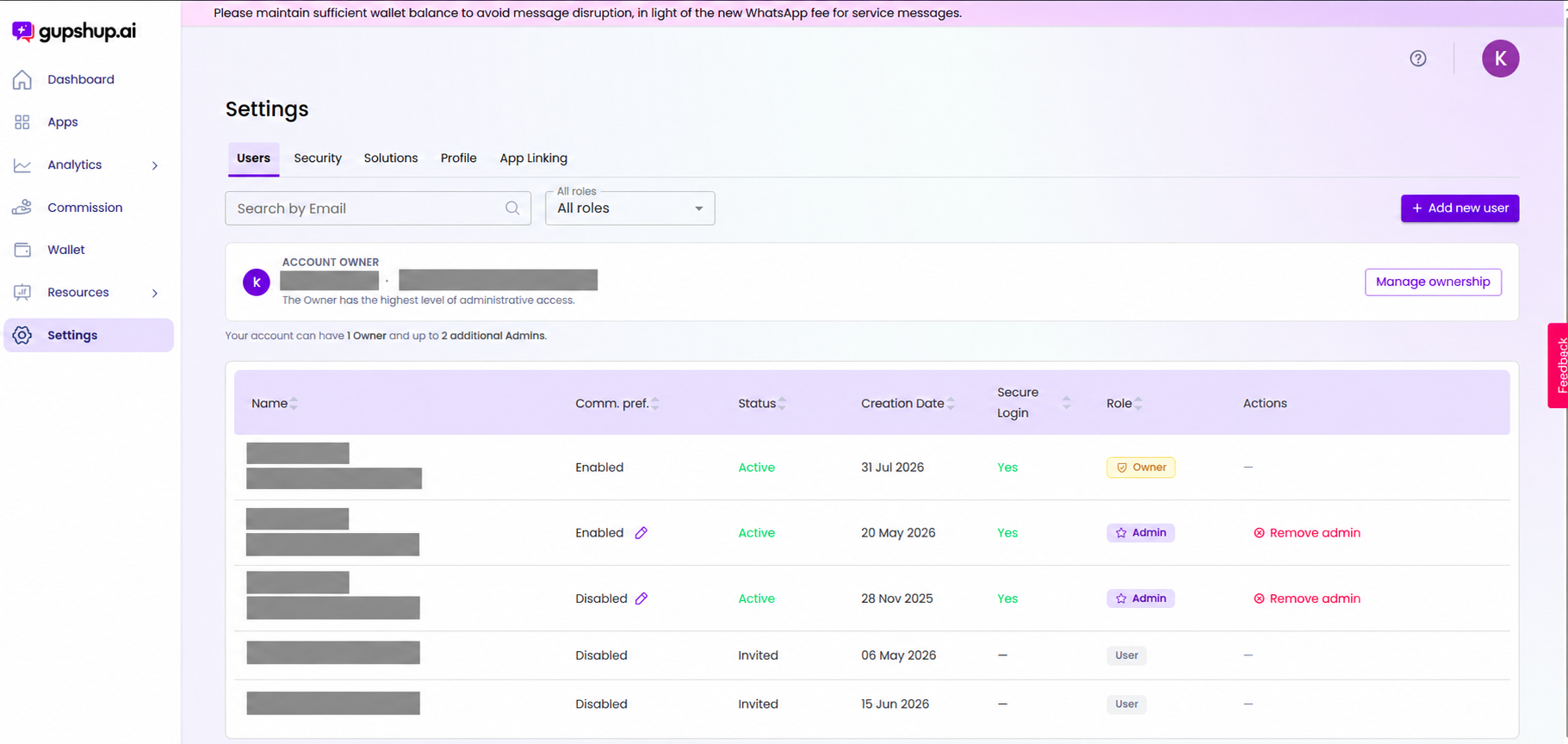
From Settings → Users, change the successor’s role from User to Admin. Only an Admin can be selected in the ownership transfer dialog. Confirm the role change is complete before continuing.
3. Transfer ownership
While signed in as the current Owner:
- In Settings → Users, select Manage ownership.
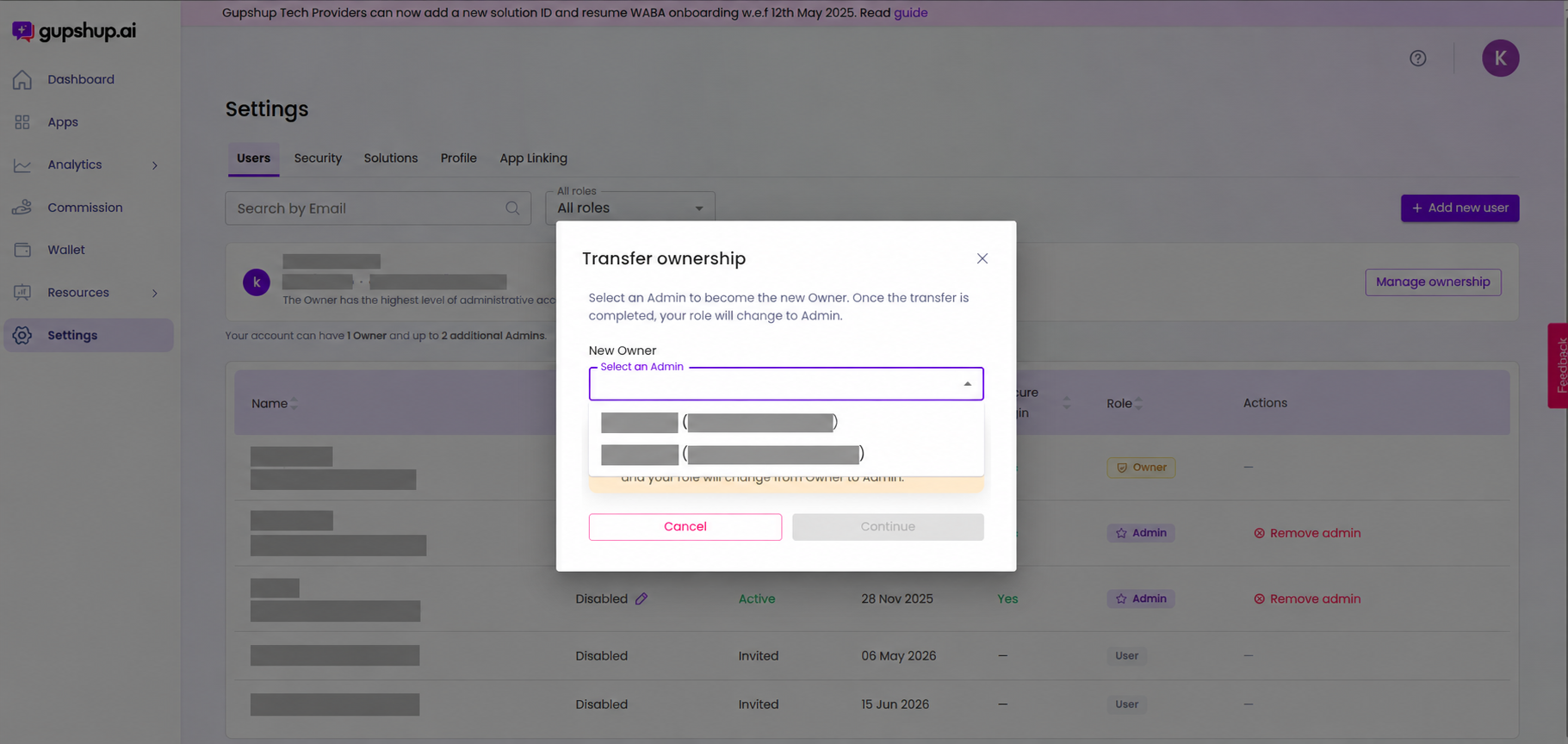
- Open the New Owner list and select the successor Admin.
- Select Continue and review the confirmation before completing the transfer.
The dialog explains that the selected Admin becomes the Owner and the current Owner’s role changes to Admin.
4. Verify the transfer
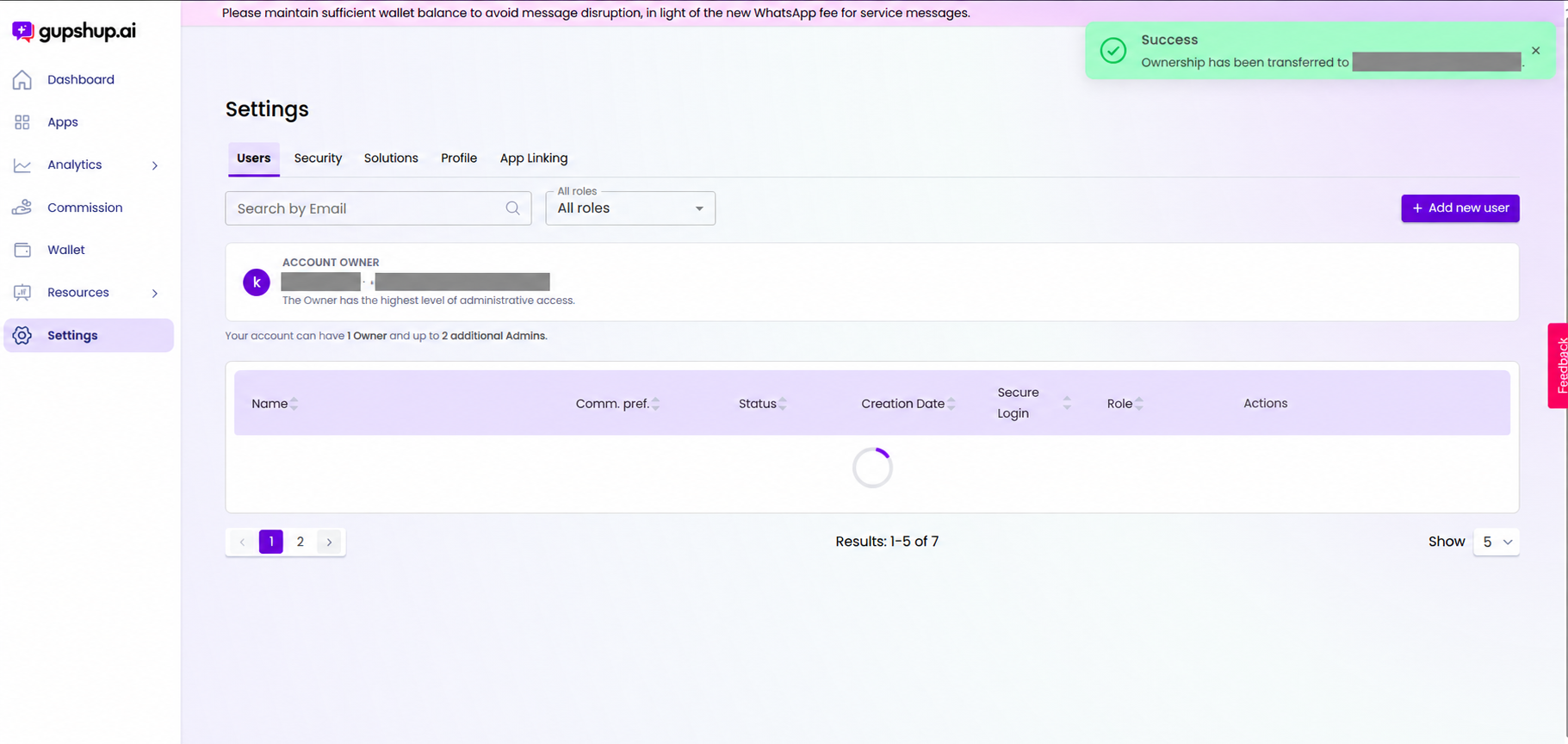
Confirm the new Owner is shown in the account owner card and that the success message appears. The former Owner should now be listed as an Admin.
Remove access for a departing employee
After confirming the transfer, the new Owner should promptly:
- Demote or block the departing employee’s account, as appropriate for your organization.
- Revoke any tokens or other credentials the departing Admin could manage or access.
- Confirm the employee no longer has access to Partner Portal or shared credentials.
Do not delete or disable the current Owner before the transfer is complete. If the successor does not appear in the New Owner list, confirm they accepted the invitation and their role is Admin.
Updated 4 days ago