
Partner Authentication Guide: Universal Tokens (UT) and Universal App Tokens (UAT) Overview
1. Current Authentication Approach
Today, partners use multiple credential types depending on the integration model, APIs, and operational use case.
The Legacy Workflow
Previously, a partner had to manage split authentication flows:
- Flow A:
Client Secret➔ GeneratesPartner Token➔ GeneratesPartner App Token(Valid only for partner APIs). - Flow B: Generate
App API Keyand/orAccount-level API Key(Valid only forapi.gupshup.ioAPIs).
The New Unified Workflow
In the new model, the authentication flow is completely unified:
Client Secret➔ Generates Universal Token (UT) (Valid for all partner APIs + allapi.gupshup.ioAPIs).
Authentication Concepts & Definitions
1.1 Client Secret
A Client Secret is used as part of partner authentication and integration workflows. It is generated individually by any partner admin or non-admin user and must be stored securely.
- New Secrets: Newly regenerated client secrets have a maximum validity of 3 months.
- Legacy Secrets: Existing, never-expiring client secrets remain unchanged for now (updates to this behavior are planned for future security enhancements).
- Expiry Reminders: Currently on the product roadmap.
1.2 Partner Token (Legacy)
Used to generate/retrieve a Partner App Token or to fetch all partner apps within onboarding APIs.
- Generation: Created using a user's Client Secret.
- Deprecation Notice: The legacy method of creating a partner token using just the partner portal password is now deprecated.
- TTL / Expiry: 24 hours.
1.3 Partner App Token (PAT) (Legacy)
Used for partner-level API authentication specifically for the https://partner.gupshup.io/ endpoint.
- Constraints: Only one PAT can exist at any given time.
- Generation: Can be generated by both admin and non-admin users via the partner portal UI or API.
- TTL / Expiry: Long-lived.
- Scope: Works at the app level for all apps linked to the partner.
1.4 Account API Key (Legacy)
Provides authentication at the Gupshup account level (including app level) and is commonly used across https://api.gupshup.io/ endpoints.
- Scope: Not restricted to a single app; has global scope for a given Customer ID. Used to authenticate any apps present in a given Customer ID, whether linked to a partner or not.
- TTL / Expiry: Long-lived.
- Availability Note: No longer exposed or passed on to new Customer IDs since March 2026.
1.5 App API Key (Legacy)
Generated at the application level and scoped to a specific app. Commonly used across https://api.gupshup.io/ endpoints.
- Constraints: A maximum of 2 active app-level API keys per app can exist concurrently.
- Scope: Strictly restricted to a single app (authenticates the app whether it is linked to a partner or not).
- TTL / Expiry: Long-lived.
2. New Authentication Method as of September 2026
The future authentication model streamlines access control around a simplified set of credentials while phasing out legacy types.
| Supported Mechanism | Phasing Out |
|---|---|
| Universal Tokens (UT) (Partner-level scope) Universal App Token (UAT) (Partner app-level scope) [RECOMMENDED] Client Secret | Partner App Token App API Key Account API Key |
Universal Tokens (UT)
Universal Tokens (UT) provide a unified, secure, and simplified authentication mechanism for partner-linked applications. By adopting Universal Tokens, you eliminate the overhead of managing multiple split API keys, reducing security risks and streamlining integration management.
NOTE : It does not work apps not linked to your partner ID.
Key Characteristics
- Unified Access: Works seamlessly across all apps linked to a partner. Validates requests for both
https://api.gupshup.io/andhttps://partner.gupshup.io/across all API endpoints. - Admin-Controlled: Only administrators can generate or revoke UTs via the UI. Automated email alerts are triggered to notify admins of any generation or revocation activities.
- Token Limits: A maximum of 3 active Universal Tokens are allowed at any one time per partner. It means that when you want to rotate the first universal token, you can create a second UT while the first UT keeps running. Once you have made your integration changes with the second UT, you can retire the first UT.
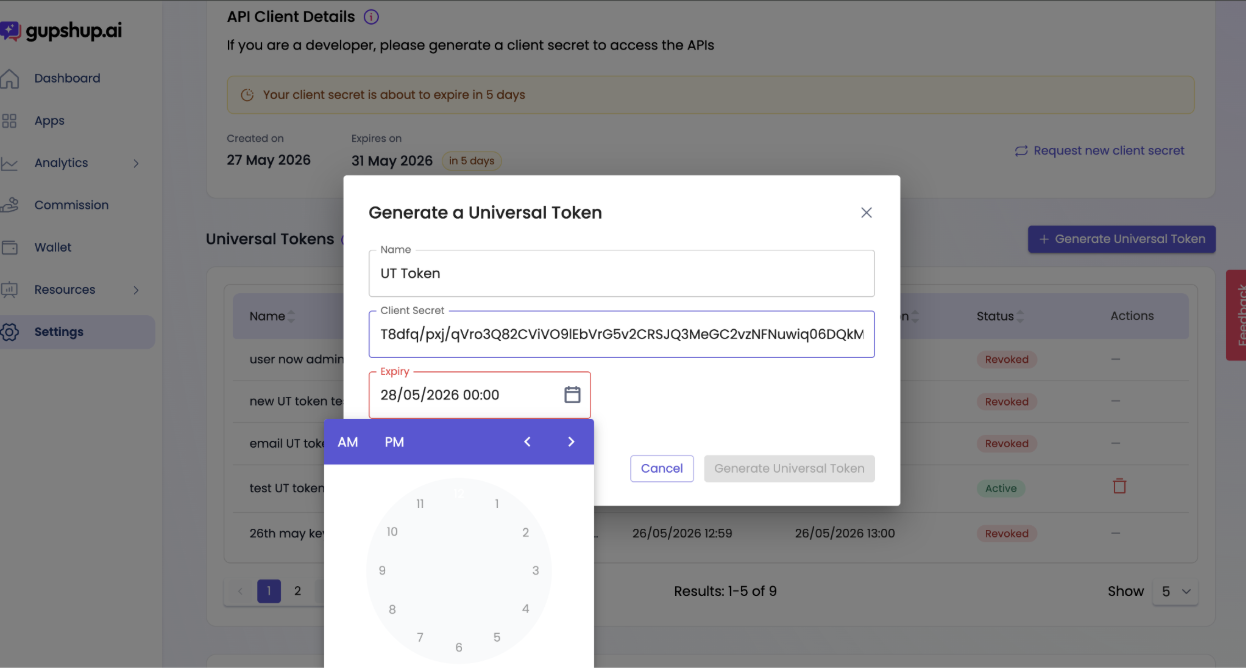
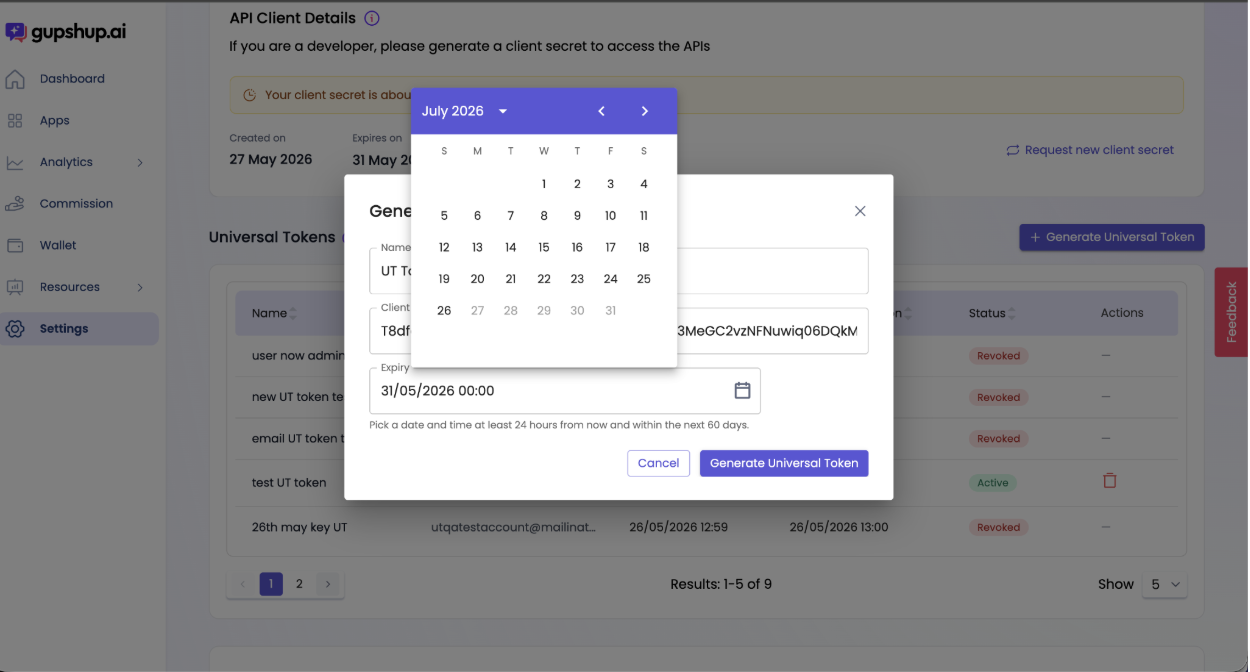
- Flexible Expiry: Configurable validity between a minimum of 24 hours and a maximum of 60 days. Partners are responsible for rotating tokens prior to expiration.
- Non-Disruptive Migration: UTs work concurrently alongside legacy App tokens and API keys. Once you have successfully verified your UT integration, you can disable legacy mechanisms to minimize security exposure without breaking active operations.
Steps to Generate a Universal Token
Prerequisites
- [REQUIRED] Your user account must have Admin access on the Gupshup Partner Portal
- [REQUIRED] Universal token works only for apps linked to your partner ID. Thus -
- Validate your existing apps if they are linked to your partner ID (for partners or partners' customers who use gupshup.ai interface) : Use the Get Partner Apps API to fetch list of your linked apps and match it with your list of Gupshup apps in your database or gupshup.ai account. If you find a delta, use the Partner Linking API to link it to your partner ID or use the the gupshup.ai linking methods.
- Ensure new apps are linked soon after creation (for partners or partner customers who use gupshup.ai interface) : Make sure app is linked to partner ID before you start managing it. Enforce this step in your customer onboarding systems.
- [OPTIONAL] The Universal Token configuration section becomes available only after completing the initial Security Wizard steps up to the 'Client Secret' phase. See the Partner Portal Security Wizard Guide for details.
Generation Workflow
The generation and consumption of a Universal Token is completely non-disruptive to active live operations.
Through the Partner Portal UI
- Navigate to the Settings section in the Partner Portal.
- Open the Universal Token Management section.
- Click on Generate Universal Token.
- Configure your preferred token expiry duration (between 24 hours and 60 days).
- Confirm token generation.
- Copy and securely store the generated token immediately.
Through APIs
OVERVIEW - https://partner-docs.gupshup.io/reference/universal-token
GENERATE - https://partner-docs.gupshup.io/reference/mintuniversaltoken
LIST - https://partner-docs.gupshup.io/reference/listuniversaltokens
REVOKE - https://partner-docs.gupshup.io/reference/revokeuniversaltoken
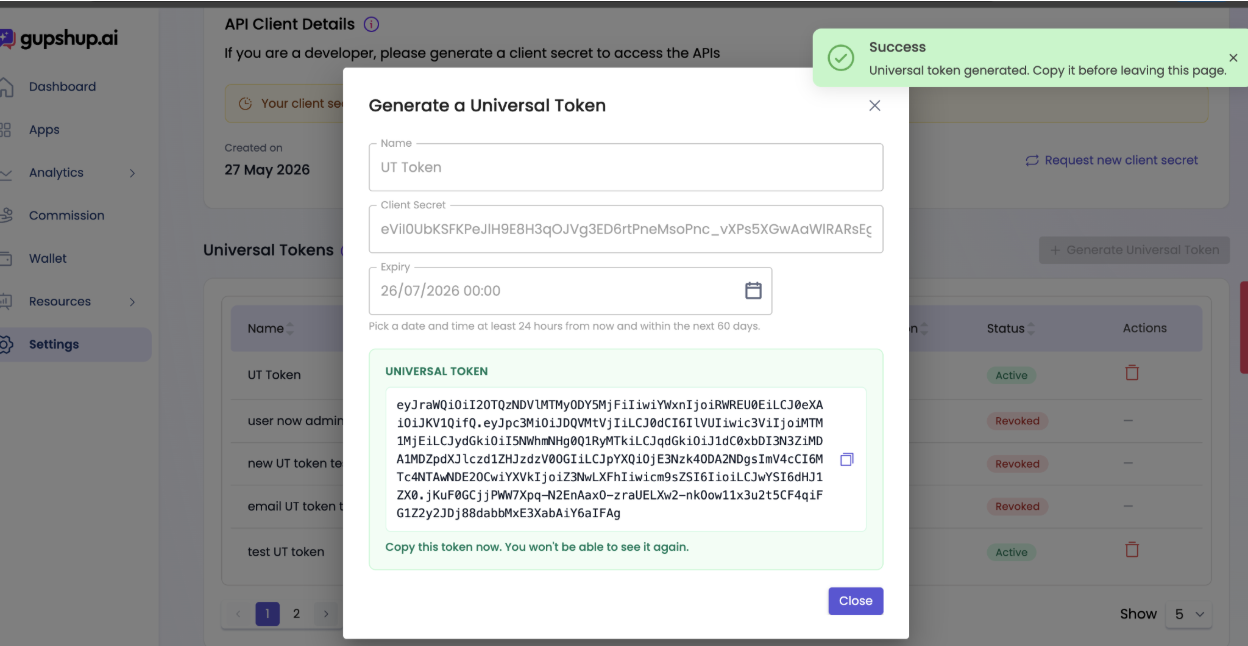
Critical Security NoteUniversal Tokens are displayed only once during generation and will not be accessible via the UI later. These tokens are meant exclusively for partner-side integrations and must never be shared with customers or exposed in client-side code.
UI Walkthrough
- Locate the Universal Token panel in your account configuration:
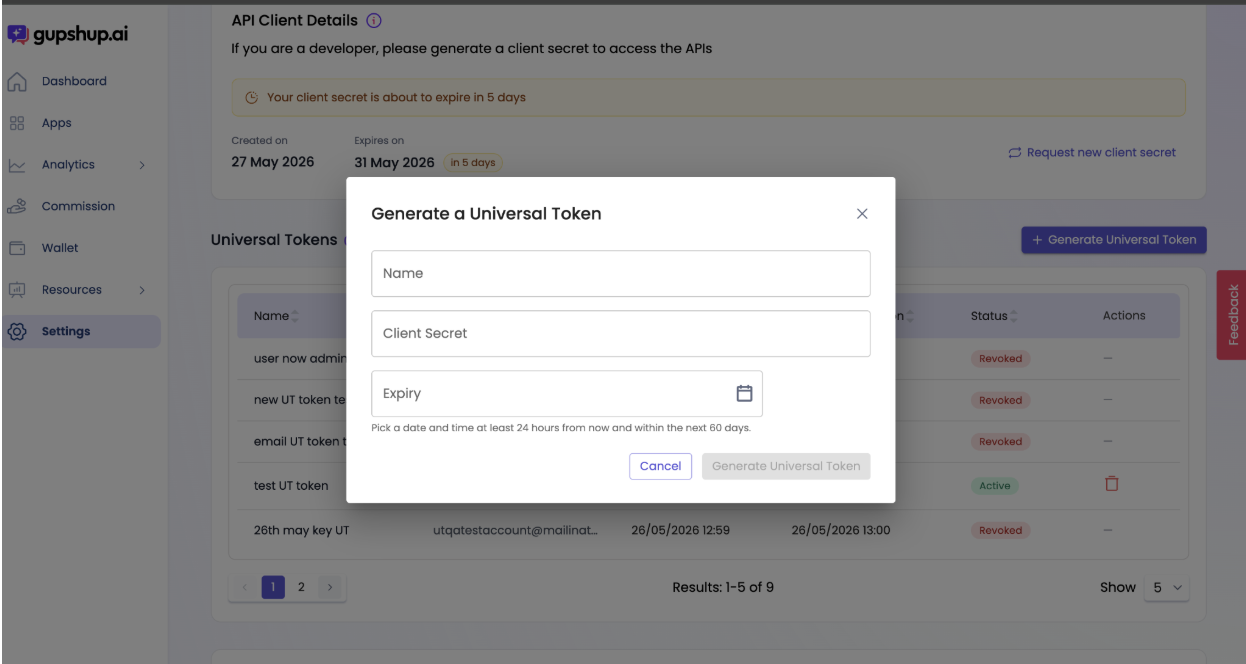
Best Practice: Naming TokensName your Universal Tokens based on their environment or operational purpose (e.g.,
QA-Environment,Staging-Token,Prod-Sync). We recommend utilizing shorter expiry durations for non-production or temporary testing use cases.
-
Set the token name and expiry window:
-
View and safely copy the token:
-
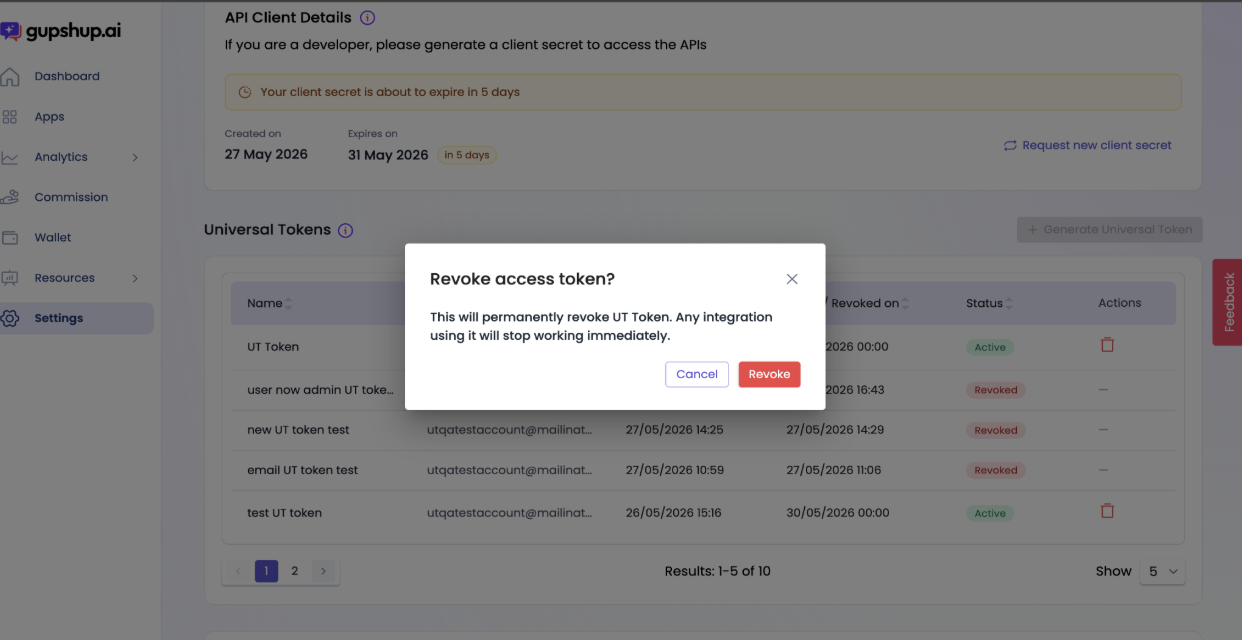
Revoke a token instantly if it is compromised or no longer needed:
-
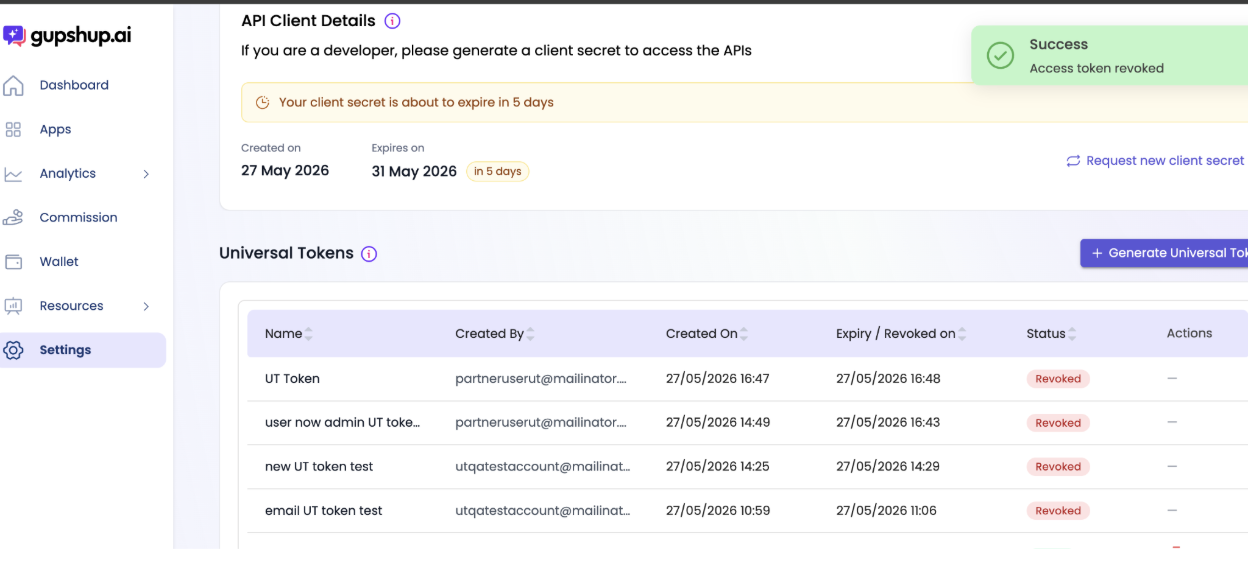
Confirm access revocation:
Automated System Notifications
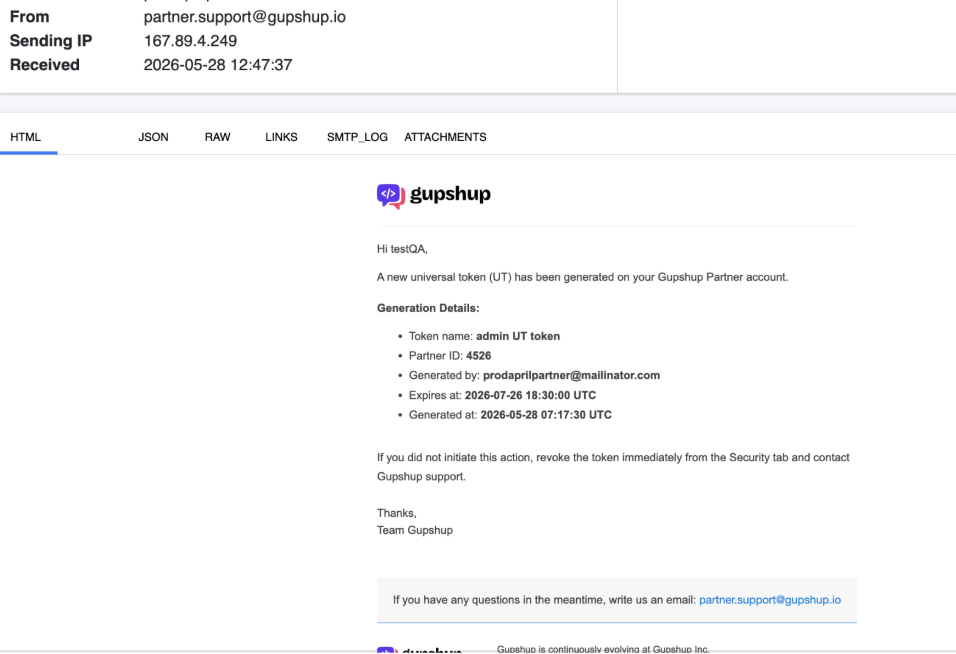
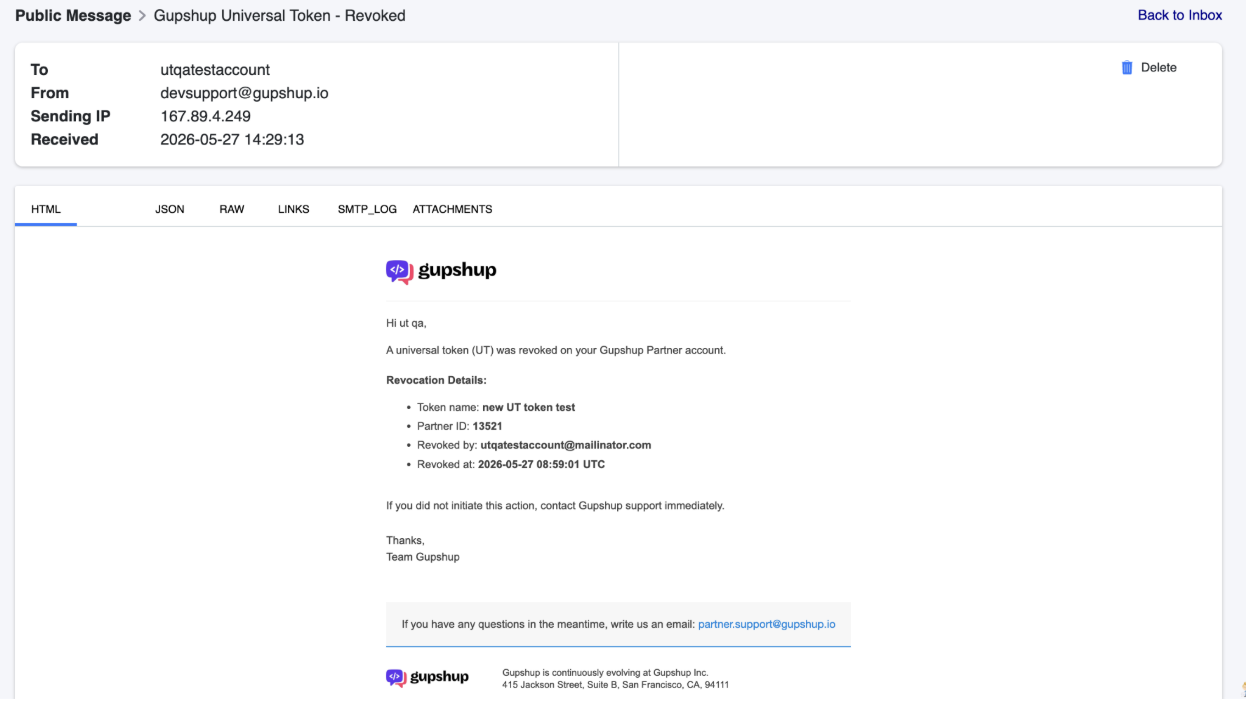
Whenever a token action occurs, administrators will receive automated confirmation emails:
-
Creation Alert:
-
Revocation Alert:
Universal App Tokens
[Recommended to adopt immediately along with universal token]
A Universal App Token (UAT) is an app-scoped access token that is generated using a Universal Token (UT). While a Universal Token provides partner-level access, a Universal App Token is limited to a specific application, enabling secure access to app-level APIs such as template management, messaging, business profile updates, and other app operations.
Why use Universal App Tokens?
- App-level security: Restricts access to a single app instead of the entire partner account.
- Short-lived credentials: Can be generated with a controlled expiry, making them ideal for temporary access.
- Admin-Controlled: Only administrators can generate or revoke UATs via APIs.
- Improved security posture: Reduces the risk of long-lived credentials being shared or exposed.
- Ideal for support teams: Partners can use a Universal App Token to dynamically generate short-lived app-level support tokens for their support or operations teams, ensuring they receive only the minimum access required for a limited duration. This eliminates the need to distribute permanent credentials while maintaining secure access to app-specific operations.
Recommended approach:
Use a Universal Token as the primary credential, and generate short-lived Universal App Tokens. Through the same - on demand generate your own token system for internal tools, support engineers, or automated systems.
Get started with UAT APIs
OVERVIEW - https://partner-docs.gupshup.io/reference/universal-app-token
GENERATE - https://partner-docs.gupshup.io/reference/mintuniversalapptoken
LIST - https://partner-docs.gupshup.io/reference/listuniversalapptokens
REVOKE SINGLE - https://partner-docs.gupshup.io/reference/revokeuniversalapptoken
REVOKE BULK - https://partner-docs.gupshup.io/reference/revokealluniversalapptokens
Important LimitationUniversal Tokens will not authenticate endpoints pointing to
/sm. Please transition away from these pathways by following the /sm Endpoints End-of-Life Deprecation Guide.
Disabling Legacy Authentication Mechanisms
After establishing and validating your Universal Token integration, you should systematically deprecate old credentials. If unexpected downtime or issues occur, the portal allows you to Undo the deprecation instantly to restore legacy traffic.
Recommended Migration Approach
Phase 1 – Parallel Usage
Partners may initially:
- Continue using existing API keys and tokens
- Validate all workflows using UT
- Ensure operational stability
Phase 2 – Controlled Migration
Once UT usage is validated:
- Disable Account API Keys
- Disable App API Keys
- Disable Partner App Tokens
Steps to Disable Legacy Keys
Navigate to your Universal Token Security Settings panel to manage toggles for legacy formats:
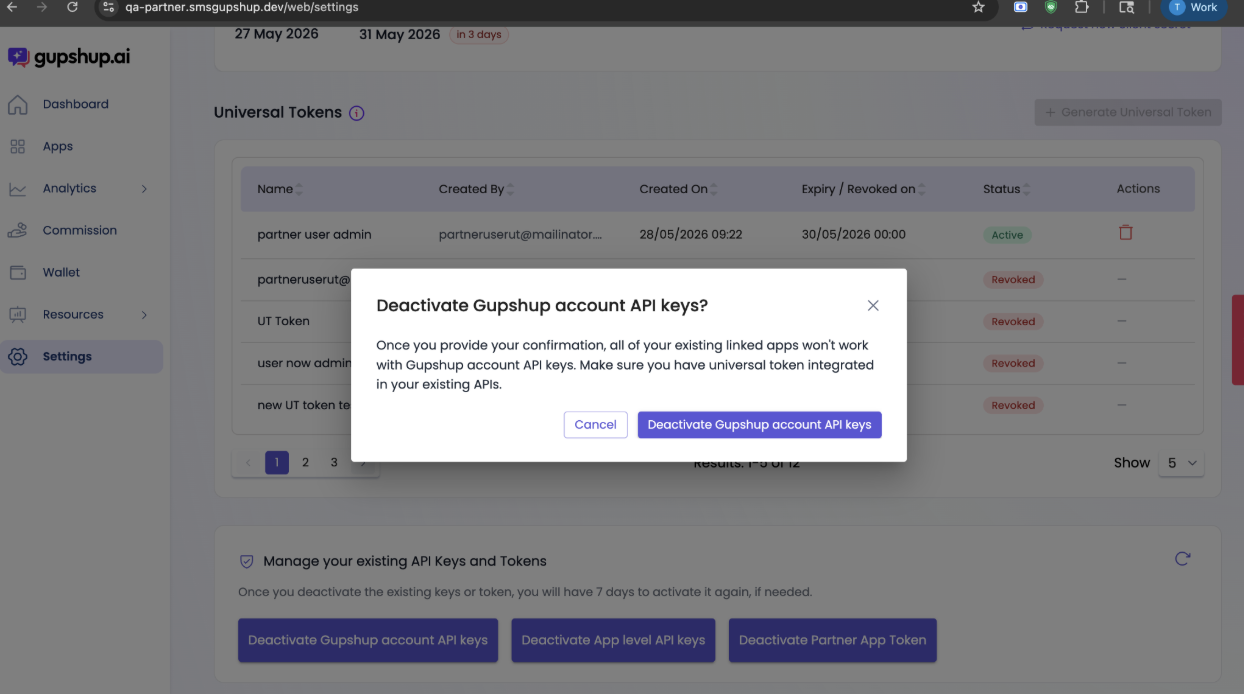
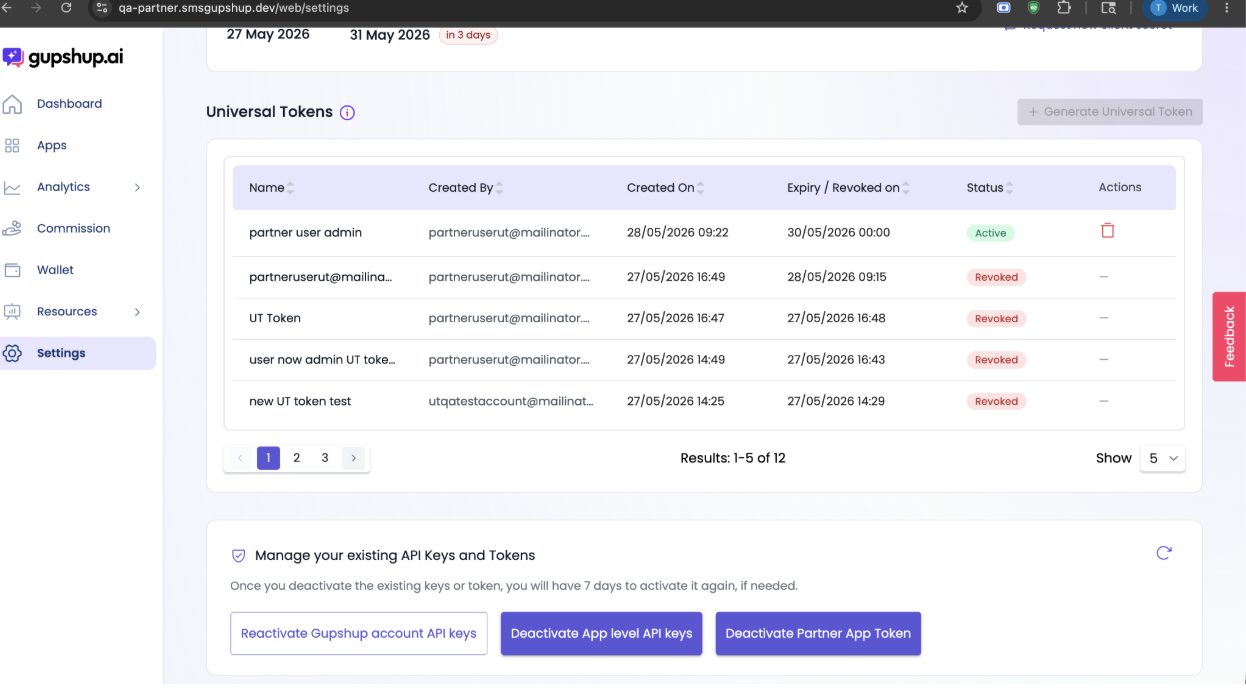
Deactivating Account API Keys
-
Toggle off Account-level authorization:
-
Confirm deactivation:
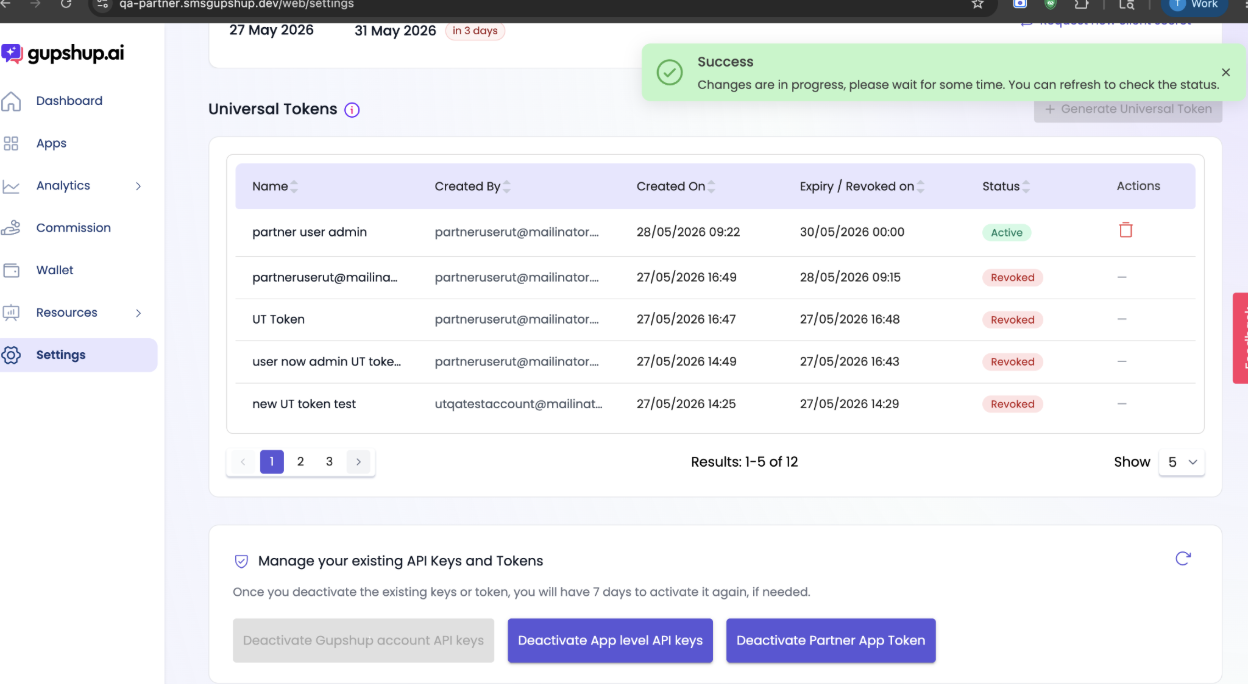
NOTE : Once this step is completed, the partner linked apps will not be manageable by any user with the account level API keys.
- Optional: if rollback is required click Reactivate Gupshup account API keys
Deactivating App Level API Keys
- Click Deactivate App level API keys
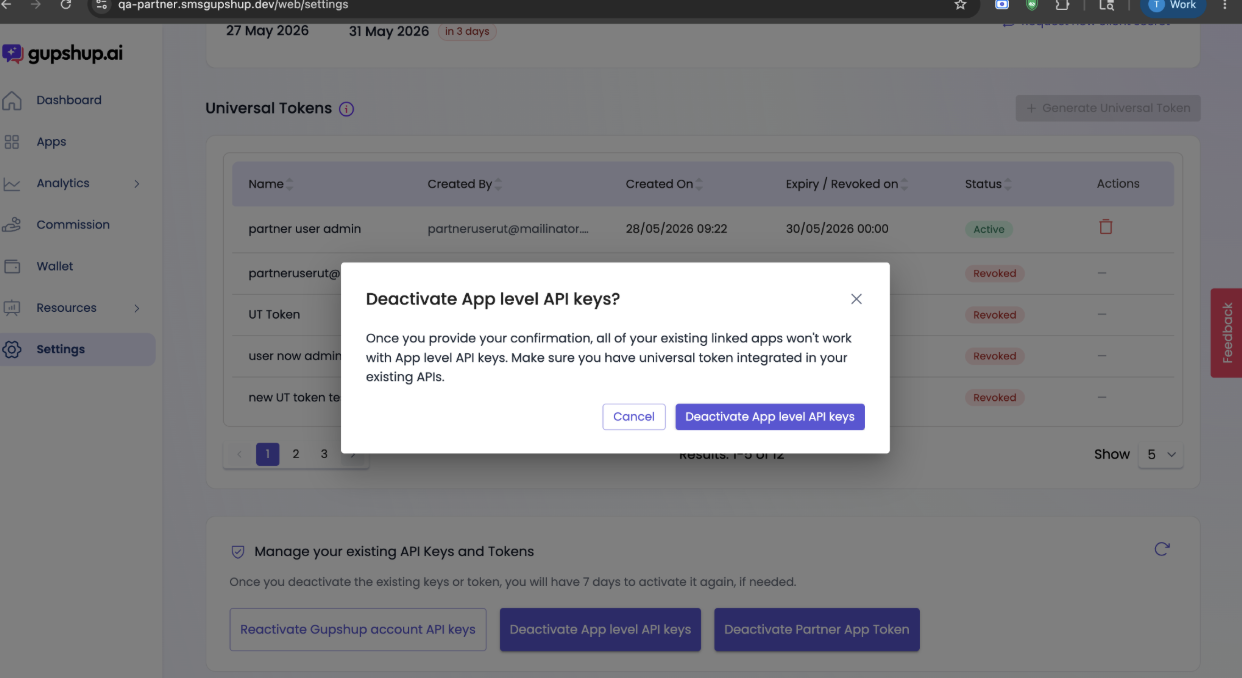
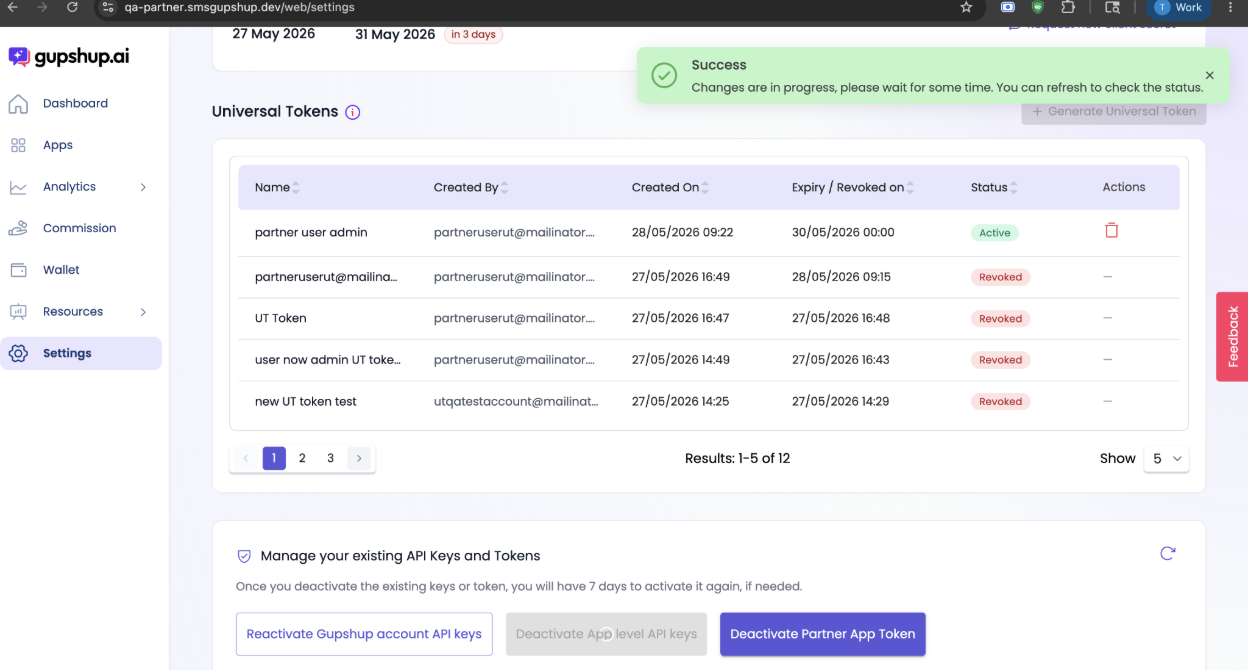
NOTE : Once this step is completed, the partner linked apps will not be manageable by any user with the app level API keys.
Deactivating Partner App Tokens (PAT)
-
Turn off the primary legacy Partner App Token toggle:
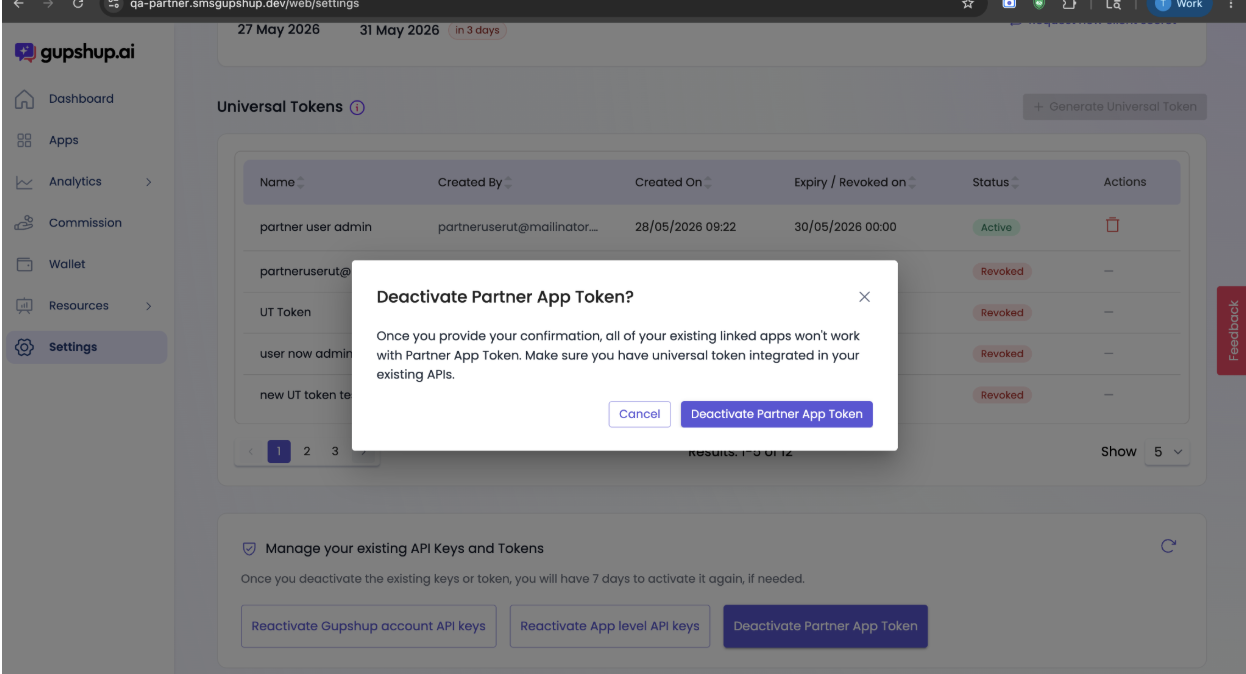
-
Confirm system impact:
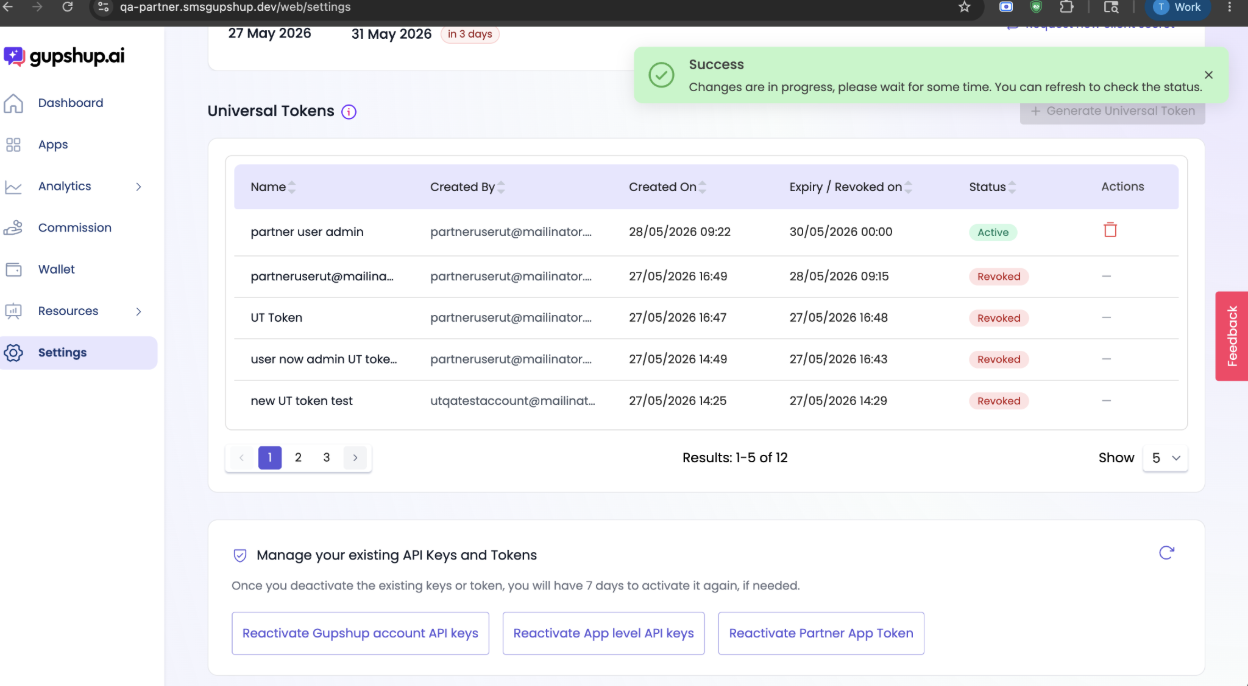
NOTE : Once this step is completed, the partner linked apps will not be manageable by any user with the partner app token.
Conclusion
Migrating to Universal Tokens yields a significantly safer, unified, and transparent authentication lifecycle. Once legacy parameters are successfully disabled by a platform admin via the Partner Portal, older credentials will immediately fail authentication requests across all partner-linked applications, preventing unauthorized external access.
Updated 24 days ago